13 January 2023

Sneak Peek: Massive RetroArch/FinalBurn Neo Update (WIP)

Update 13 January 2023, several amendments and Preemptive Frames as third big thing

2023 starts with some big news for Mac Retrogaming: RetroArch received a Vulkan driver for MacOS via the MoltenVK layer and further big things. I try to explain why this will probably become a major game changer and even less reason for me to use MAME.

First: Vulkan and HDR

The MacOS Vulkan shader comes with HDR, nicely configurable in the UI. I had to heavily scale down the default settings to achieve decent colors on my HDR monitor, however. Contrast must go up tremendously here.

(wip: insert default settings vs my settings here)

Vulkan let's you use more of the latest and greatest shaders. One shader that can be easily overlooked is the koko-aio shader (bundled with RetroArch, but only github provides for the latest version 3.5 currently):

 https://github.com/kokoko3k/koko-aio-slang

This shader provides for screen bezel reflection and other goodies and is easily configurable and editable (after some initial work). Here is an example of my first work results (videos will follow, the main point are the reflections on the screen bezel, which incredibly add value) - the bezels are included in the shader configuration!

HDR and bezel reflections as you play are a significant upgrade. The background image needs further adjustment.

Second: Stable 60 fps on 60 Hz monitors

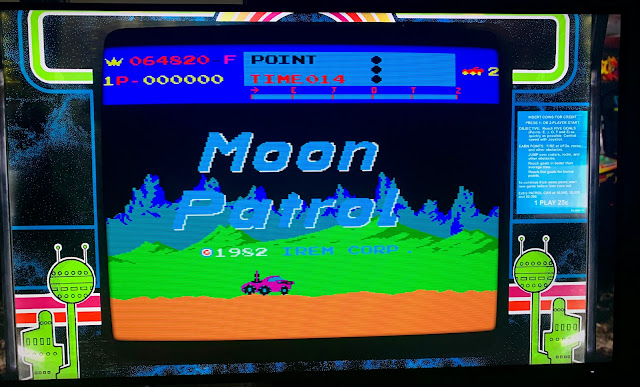
FinalBurn Neo is the best choice for everybody that has a 60Hz fixed rate LCD: In the Core Options of FinalBurn Neo, be sure that "Force 60 Hz" is activated (you need to close the Core and restart, if changed!). It truly makes a difference with difficult candidates, such as Moon Patrol:

Moon Patrol scrolling at 60 Hz is perfect (again, see the screen bezel reflections!), the vertical lines come from the screenshot.


The system's default refresh was at 56,97 Hz, and this must cause severe hickups with 60 Hz fixed rate monitors.

In essence, perfect scrolling in FinalBurn Neo can be achieved easily, while the workaround explained for MAME in an earlier post seems more of a hack. That‘s a huge thing.

Third: Preemptive Frames instead of Runahead

Very recent RetroArch Nighties deliver another new function called Preemptive Frames (under Latency Options). The RetroArch team claims that it is consuming less resources, so you should use it instead of Runahead, unless you experience audio issues - then again Runahead. 

Happy to report that during my initial testing, I encountered no issues whatsoever in FinalBurn Neo, for me it just works like Runahead. Another very nice thing is that the new function takes over the core-specific and game-specific settings. So I am running FinalBurn Neo default with one preemptive frame and 2 frames only in selected games (e.g. gyruss). 

Even better, many games now have functioning highscores even if you activate Runahead/Preemptive Frames! In the past, you had to decide between the two. While it is not universal like in MAME, it keeps getting better (for me, however, RetroAchievements have become much more important than personal highscores).


These three things alone, combined with RetroAchievements and a steady development of FinalBurn Neo, provide this emulator a clear edge over MAME on Mac systems. I know, that's heresy, but on the other hand, MAME development for Macs has not seen any improvement through the last two or so years.

More to come here soon.

28 December 2022

Google Search Milestone 🥁🎉😎 - staying strictly non-commercial

So I learned these days that Google Search sees this Blog, and here‘s a milestone for clicks. It is very nice to see that this bears some relevance. And repeating my pledge: No monetization whatsoever happens here! Keep on retrogaming!


26 December 2022

Off-Topic: Mupen64plus on Mac Silicon - finally here

Update Christmas 2022: I created a script for a fully fledged compile of mupen64plus. 

Please download the zip file under this link:

https://drive.google.com/file/d/1EG6fMN-NmQl5cPZ20SNFGdych-wGmxNa/view?usp=sharing

After extraction, please check whether it is executable; if not:

chmod 755 mupen64plusSilicon.sh

With this script, you get all built automatically as described below. Be sure to have all the dependencies installed as explained below.

Only one warning: Although the Rice plugin builds successfully, it fails in my testing with several errors. For the time being, it does not work.

And if you want a frontend: That one works well, even if only an Intel binary (take the latest development build):

https://github.com/dh4/mupen64plus-qt#development-builds

Original post from 3 October 2022:

This is major (at least for me), thus I post these non-MAME news as a change: It runs on Apple Silicon, and quite well!


As we all know, Nintendo 64 emulation is a challenge, and modern Macs have long time been virtually excluded from proper emulation. Though OpenEmu has a N64 core based on mupen64plus, the current limitations are too big (for me), and on Apple Silicon, there is no OpenEmu binary available. But finally, you can at least compile your own mupen64plus binary, and thanks to a user, even the crucial GlideN64 plugin can be compiled now!

What you get from this adventurous compile:
  • a (nearly) fully functional mupen64plus core with GildeN64 GFX, SDL joypad support and two optional RSPs (HLE and CXD4)
  • very decent performance at 1280x1024 (I did not yet test higher resolutions)
  • fully functional hires texture packs (crucial for me)
  • everything is still considered 'experimental', but very good for me to go so far
  • run it out of a directory, so I do not mess around with an app image
Requirements: Besides XCode, you need a bunch of packages to be installed (via Homebrew or via Macports). These instructions for MacOSX seem outdated. With Homebrew, an installation of the requirements is rather straight-forward:
  • Homebrew (initial install)
  • sdl2 (with all associated dependencies)
  • libpng
  • freetype2
  • zlib
  • cmake
  • nasm
If you have already Homebrew up and running, it's very likely that you already meet these requirements.

I keep it short for the time being, but will expand if necessary. Basic Terminal knowledge and MacPorts/Homebrew will be required.

11 December 2022

Moving to MacOS Ventura

 After some waiting, I moved to MacOS Ventura 13.0.1 from Monterey without any issues so far.

Ventura seems to be a no-brainer for MAME

This is a rather short post because there is not much to report: MAME and all frontends seem to work flawlessly. Benchmarks show approximately identical results (OpenGL became slower through various releases, Metal benchmarks still don't work properly, but at least the purple flash is gone when starting MAME and games).

Further nice things to report:

All emulators mentioned in this post work.

Joypad configuration is massively improved, and Nintendo Joypads and Joycons can be connected. For Joycons and Dolphin, you only need to follow Andrew‘s instructions:

https://youtu.be/Y4FqRpFi5Fo (a brilliant channel, by the way)

I already tested my beloved Super Mario Galaxy 2, and it blows my mind :-).

The new Apple Silicon build of GIMP 2.10.32 runs extremely well.

If there is anything else to report, I will do an update here.


21 November 2022

RetroAchievements is just brilliant and highly addictive! (November Update)

Brief update after s month in RetroAchievements: It continues to amaze me!

- New sets come in very frequently, and the recent Moon Patrol set is brilliant. With sets like these, you learn more about the games and what is achievable (at least by very good gamers). The community is enthusiastic and grateful.

- As an open system, you can switch between emulators/RetroArch cores or systems (Mac/iPad/Windows/Raspberry Pi) and always work on your achievements. This is amazing.

- For Arcades, I went back to the Arcade Stick, these challenges demonstrate that you need them for serious Arcade gaming. My beloved PS4 joypad is just too casual.

- Even if I will probably not master any set fully, I really like looking at my achievements and think of next steps (closing in to top 50%, at least).

- But where are you, fellow gamers? Let‘s connect!!! 😃


First: Whatever I write here, you need to experience it yourself to really appreciate it.

I never had a close look into RetroAchievements, though it has been around for some time. What a mistake, now I have to play all these console games from scratch again ;-), but now without save states, but just the original games!

Though arcade games don‘t play the lead role in here, they are still worth a try. Just to clarify, this is not MAME, but Finalburn Neo in RetroArch. So if you still need a reason to test RetroArch for arcade games - here it is.

Please see https://retroachievements.org/gameList.php?c=27 - there are currently 218 arcade games registered with a set. Arcade games that are worth a try in RetroAchievements are:

Galaga, Gyruss, Phoenix, Metal Slug Series, Shinobi

06 October 2022

Attract Mode on Steroids: At-The-Arcade Flex is a must tryout

Update 6 October 2022: This GitHub repository provides very recent Apple Silicon builds of Attract Mode

https://github.com/djhan/attractplus-for-mac

See https://github.com/djhan/attractplus-for-mac/blob/master/attract-2.6.2-41.dmg

And Attract Mode builds very nicely on Silicon Macs, just use the create-pkg.sh Script from the /util/osx subdirectory. It only works with Homebrew but not MacPorts, though. And if you want to use the created dmg on another Mac (even identical AppleID), you need to codesign the binary, the dylibs and the app container manually, otherwise you get a "permission denied" error and other error messages.

——-

During my testing, I could not identify any flaws, except for the non-functional history.dat plugin. So kudos to DJHan for these builds. For Intel builds, revert to the discussion below and try his Intel builds, or just stick with the official old builds that still work fine.

Minor update 10 July 2022: As explained in the comments below, if you  want to compile your own .app bundle (which works nicely), it seems to me that you must sign it with your own Developer Certificate. Otherwise the compiled app would even not work on your own Mac (at least I think so).

Attract Mode still impresses, as its layout capabilities are further evolving in the community. This release of a layout called "At-The-Arcade-Flex" is so outstanding that I had to produce this small video.

How to get there:

  1. Setup, part 1 - is a mandatory read, in particular how to toggle new layouts
  2. Download and install the theme from here: http://forum.attractmode.org/index.php?topic=3979.0 - read instructions carefully, but note: On Macs, the gtc-common folder goes into the .attract root directory of your user.
  3. Download the updated cabs from the same forum post and put them all in a directory of your choice (must match with the directory below!)
  4. And these are the important parts of your Arcade.cfg file - cabinets folder definition in red:

executable           $HOME/Games/mame/mame

args                 [name]

workdir              $HOME/Games/mame/

rompath              $HOME/Games/mame/roms/

romext               .zip;.7z

system               Arcade

info_source          listxml

nb_mode_wait         2

exit_hotkey          Joy0 Button12  

artwork    cabinets        $HOME/Games/mame/cabinets_am 

artwork    flyer           $HOME/Games/mame/flyers

artwork    marquee         $HOME/Games/mame/marquees

artwork    snap            $HOME/Games/mame/videosnaps;$HOME/mame/snap

artwork    video           $HOME/Games/mame/videosnaps

artwork    wheel           $HOME/.attract/scraper/mame/wheel


It's very snappy and extremely noisy - you get the cacaphony of an arcade hall, and your own video sound prevails over it. What a joy! Try out and be amazed.


New Lightweight GLSL Shader around - some testing comparison

If you browse this blog, you'll see how important I deem shaders for MAME. Proper shader configuration was a bit of the start of this blog. So no wonder if I report about a promising new lightweight GLSL shader.

MAME-PSGS in action, good looking and performant

You find the new shader here: https://github.com/TheCodeTherapy/MAME-PSGS. According to the ReadMe, this shader is designed for rather low-key non-Windows devices running MAME. Clearly modern Macs run every BGFX MAME shader with ease, but let's see which performance gains a truly lightweight shader can achieve.

16 July 2022

MAME on Apple M1 - as good as expected!

Update 6 February 2024: Breaking news - MAME 0.274 provides a brand new ARM64 dynarec. The wait is over, native Silicon Macs are capable of running all MAME games. Let's celebrate!

Update 6 January 2025: I need to mention my new blog post regarding running an Intel Build on Silicon/ARM Macs, as they can really complete a good emulation experience on this platform. Needless to tell that I am now on MacOS Sequoia without any hassle in MAME.

Update 3 December 2022: moving to Ventura was smoothless - see this short post.

Update 16 July 2022: I did some prelimimary MAME testing on a 14“ MacBookPro M1Pro (it’s not mine). While this is no in-depth review, there are some insights from a MAME gamer‘s perspective I would like to share with you.
  • SUPERB The Liquid Retina XDR-display with 3024x1964 is a real highlight. Above all the ProMotion refresh rate of 120 Hz provides you with butter-smooth scrolling out of the box. Just activate waitvsync on top, and you get perfect scrolling. But don’t use nothrottle as your games would run double speed.
  • GOOD: This laptop produces surprisingly good sound quality. Retrogames sound very nice!
  • GOOD: It did not produce any heat during my testing, and no fan noise. Always such a good thing compared to most Windows and MacIntel laptops.
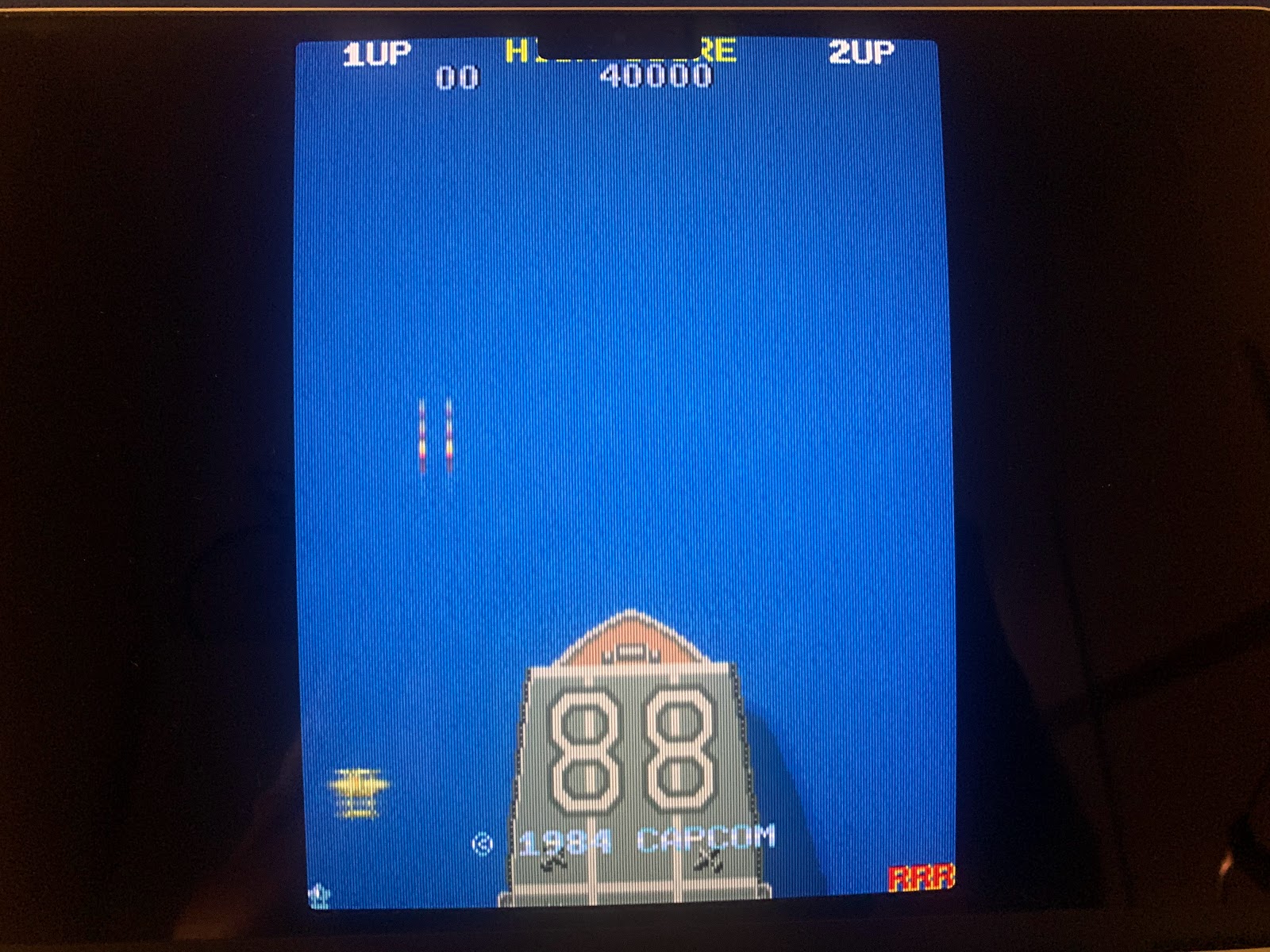
  • BAD: In some games, e.g. 1942, the display notch is quite a nuisance (see photo below). But it’s not terribly bad, if it makes you crazy, use a bezel and shrink your screen, or just turn to window mode.
  • SURPRISE: Initial benchmarks (as I used to do them) provide for worse results than on my Mac mini M1, even on the same external display. The M1 Pro should provide better results, so something is wrong. In practice, this is totally irrelevant, as the games run just nicely so far.
Conclusion: Of course this machine is too much for Retrogaming, but if you happen to own such machine, it provides an impeccable MAME gaming experience, with this display being the highlight. Would I need a Mac laptop, I would always opt for a ProMotion display.

In many games, you will have to adjust the screen below the Display Notch.


Original post: I finally decided to move to a Mac mini M1 - and MAME just shines on it. No war stories here, but just the benchmarks!


R0ni compiles M1 MAME, so get it here: https://sdlmame.lngn.net/ or on Github: https://github.com/mac-a-r0ni/mame 

This table shows you a performance comparison between:
- Mac mini M1 (native)
- Mac mini M1 (Rosetta2): no real need for this, but just to demonstrate Rosetta2 performance 
- Mac mini Intel (latest version)
- iMac (late 2013): best results under Mojave (Catalina became slower, and no Big Sur here)

./mame -video bgfx -str 60 -noafs -bgfx_screen_chains crt-geom -bgfx_backend opengl -noreadconfig -nosleep -nothrottle -lowlatency


02 April 2022

FINALLY: perfect scrolling in MacMAME by configuration!

👾👾👾👾👾👾 Time to celebrate. After so many attempts, I finally stumbled across the perfect configuration for flawless scrolling in MacMAME. 👾👾👾👾👾👾

Update 16 July 2022: It seems to me that with displays higher than 60 Hz, the nothrottle option would not work, as it results in speeds far above 100%. At least that was the result of my testing with a MacBook Pro M1. With such monitors, you would not need this hack anyway as waitvsync alone already provides for perfect results.

Showcase Moon Patrol - watch on your system how it scrolls sideways 

Until now, the usage of waitvsync, which is rather important for avoiding bleeding, caused stuttering in MacOS. As the MAME documentation explains:

On macOS, -waitvsync does not block; instead the most recent completely drawn frame will be displayed at vblank. This means that if an emulated system has a higher framerate than your host display, emulated frames will be dropped periodically resulting in motion judder.

That's why waitvsync is disabled by default. Now, very surprisingly, nothrottle combined with waitvsync comes to the rescue! With this MacMAME emulation is close to perfect for me! No 144 Hz monitor or Adaptive Sync required.

24 December 2021

MAME and RetroArch in macOS 12.1 Monterey

Just a fast post on Monterey: Both MAME and RetroArch/FinalBurn Neo work flawlessly, both on Intel and Silicon machines available for me.


After the read of Ars Technica's review of macOS Monterey and the release of version 12.1, I found it safe enough to to the upgrade. 

06 October 2021

January 2016 - September 2021: 100.000 Views - Thank You

Without realizing it, this September saw my blog passing the 100.000 views mark. Even in rather silent times, this documentation seems to help Mac users.

Thank you for your interest, this is my contribution to MAME. Please let me repeat that this blog will always remain strictly non-commercial.

Cheers.

07 May 2021

Final Burn Neo 1.0.0.2 is the better MAME on Macs

Fast update 29 August 2021: After quick tests of MAME 0.235 and FBNeo 1.0.0.3/RetroArch Metal 1.9.8, the situation is still the same. Important note, however: After updating FBNeo (as well as any other Core), restart your Mac! Weirdly any updated Core crashes RetroArch immediately, while after a restart, everything works fine.

These are quite heretic news: On my Macs (both M1 and Intel), many arcade classics play better on the brand new combo Final Burn Neo 1.0.0.2/RetroArch Metal 1.9.2 than current MAME. If you are curious and ready to dive into RetroArch, this is definitely worth a try.

Moon Patrol (FBNeo with crt-guest-dr-venom2 shader)

I tested the newest incarnations of Final Burn Neo (via RetroArch frontend) and MAME official on my Macs, and to my surprise, Final Burn Neo currently has a clear edge over MAME in some classic arcade games. If you want to do your own testing, I recommend that you try out these three games, where results are quite obvious:

07 February 2021

MAME Arcade Bezel Update!

Just to let you know that my Github repository containing realistic bezel artwork for MAME is significantly updated. No need to repeat the ReadMe file in Github, just move there:

https://github.com/estefan3112/MAME-Realistic-Bezel-Artwork/blob/master/README.md


Shinobi contains all updates, including the Screen Mask (very much smoothing the screen borders) and
adding a dedicated Screen Bezel (thereby adding a lot of depth to the bezel).


I was looking for a long time for a screen bezel for Oddyssey2/Videopac - so many thanks to SuSGoART for that one (I found it in the libretro forum, conversion to MAME layout format by myself).

While this project will probably never end, I believe that it is a very nice moment to grab the repo and enjoy the new stuff. Comments as always much appreciated.

31 December 2020

MAME Shader Roundup - GLSL Configuration Working Again! Happy New Year!

Happy New Year to everybody!

With a very big MAME 0.227 release, I took some time to sum up the options that Mac Users have in terms of shaders - please read at least this post first for an overview, and I follow up on that one.

Out of the box: When you run MAME without any tweaks, it only smoothens the pixels, but does not apply any shaders. By this, every operating system starts MAME games, while shaders are often very OS-centric.

When to use this: Only if you have a system that does not cope with any of the below options nicely.

GLSL is back again! For quite some time I thought that the good old OpenGL shaders no longer work, but they actually do. Let me summarise how to configure two variants of the CRT-GEOM shader for MAME GLSL.

Setup MAME 0.227 from scratch on Macs (Update December 2020/January 2021)

Another update on how to configure MAME from scratch in the very preferable way, which is
via its internal interface MEWUI (default MAME UI since 0.171) and a text editor.
  
If you are willing to work with your Terminal and a Text Editor, it is by far the best way to set up and maintain MAME, irrespective of which frontend you wanna use later on.

So let's go step by step from scratch. 
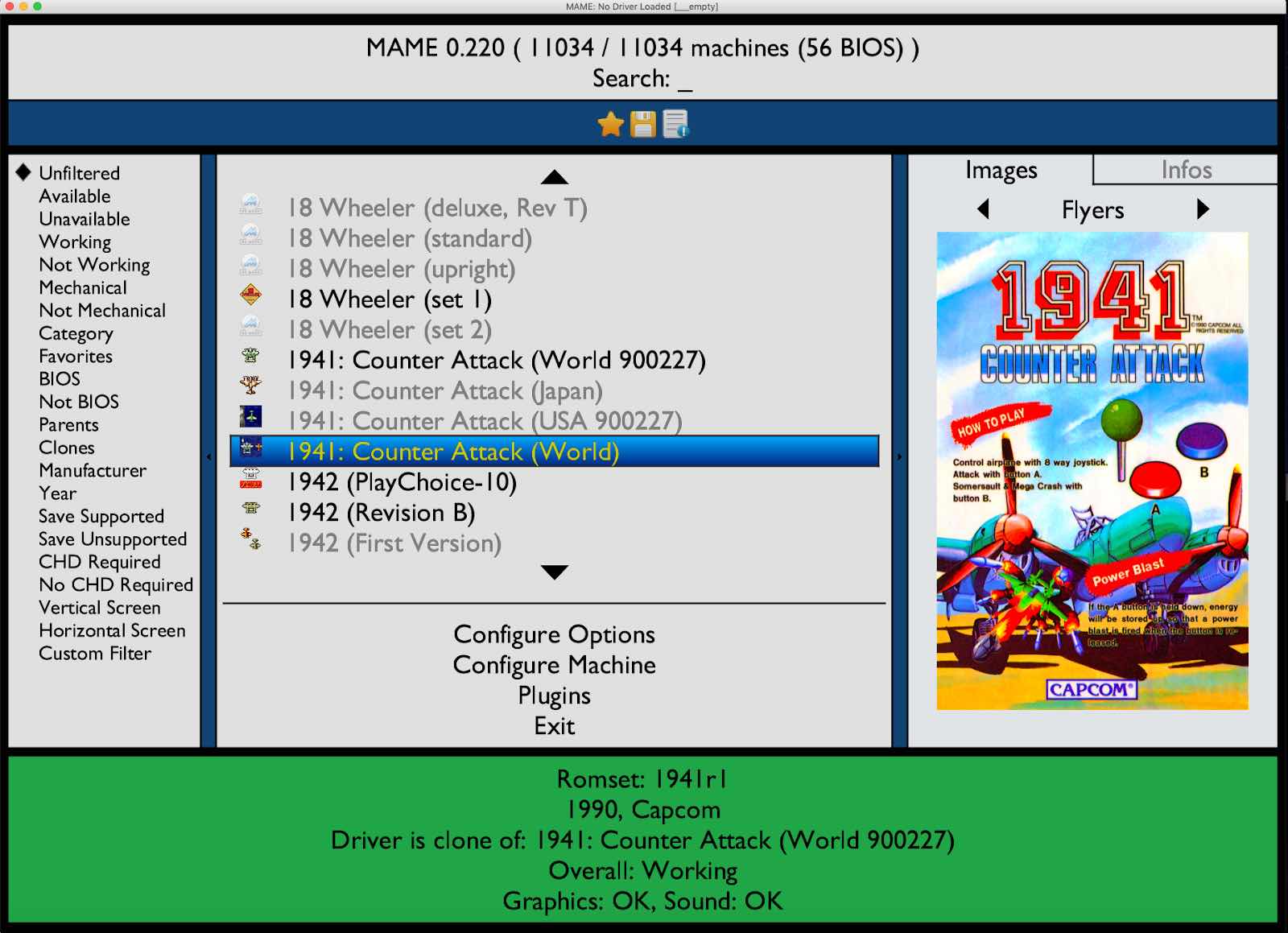
MEWUI - click to enlarge
Step 1 - Basic Homework 

Download and install SDL 2 as explained here. Download a good text editor - I now use Atom - https://atom.io, which needs a bit of a learning curve, but it's a very decent Open Source editor.

Change Finder Settings in order to display hidden folders and files, e.g. with Deeper (you need access to your User Library folder, which is by default a hidden folder). Another very smart way to display hidden folders and files is this key combo in the finder: SHIFT-CMD-. 

Shift - CMD - . and you see the hidden files greyed out, but fully accessible, very neat!

Of course, download MAME from here and unzip it into the place of your choice. Obviously this is the SDL version of MAME complied for Macs.

Recommendation: I currently keep my running MAME version in the folder 'mame' and keep only older versions in a version-related directory. This definitely helps you further on to stay consistent and carry on your work from version to version.

Step 2 - Create .ini files in the Terminal and manually configure ini paths

After a lot of testing, my recommendation is to create your first .ini files from the Terminal. This should save you from a lot of headache by multiple .ini files that just cause confusion.

  • Start Terminal and cd into your directory of MAME (recommendation: name your main directory mame, see above)
  • Now in the Terminal and in the right directory, the command ./mame64 -cc generates the three default config files in your mame directory:
mame.ini - your overall configuration file for MAME
plugin.ini - your configuration file for activating and deactivating MAME Plugins
ui.ini - your configuration file for the MEWUI interface
  • By default, mame.ini contains the following multiple ini paths:
inipath  "$HOME/Library/Application Support/mame;$HOME/.mame;.;ini"
Recommendation: In my own experience, this is rather unfortunate, because you may end up with multiple .ini files at multiple places rather easily. Since MAME then considers all these .ini files in a certain order, you may be lost in chaos. Right now, I actually prefer having all .ini files in the MAME sub-directory called ini, thus I reduce this line as follows:
inipath                   ini
This means of course that you have to move the three .ini files created in the first step into the ini subdirectory. As long as you do not forget about the ini directory when moving to a new MAME version, this is probably easiest to handle, and the /Library/Application Support directory stays clean of MAME config files
 Step 3 - Start MEWUI (the right way)

Open Terminal and switch to your MAME working directory (easiest way: type 'cd' and then drag the mame directory from the Finder into the Terminal -> press Return in the Terminal window)

Warning: starting mame64 with double-click does not work in the right way -> so start via Terminal as explained here. So you must be in the MAME working directory!

27 December 2020

MAME and MacOS Catalina (Update December 2020)

Update 28 December 2020: I finally updated my iMac Late 2013 to Catalina - and everything works in MAME as expected. 

Interestingly, nothing of the concernes raised in the community back in January actually turned out to affect the Open Source community. Homebrew has now been in Catalina development for more than a year, and this update took quite a while, some hickups included, which I however could resolve with Google.

19 December 2020

Intel UHD (bad for MAME) and macOS Big Sur 11.1 first impressions

As already anticipated in this post, probably any Intel Macs with Intel UHD Graphics are a quite bad choice for MAME. Here is new proof with the probably very latest Intel Mac mini, a machine that I otherwise very much like. 

But as also barefeats.com explain here, these Mac minis 'scream for an eGPU' when it comes to gaming and other GPU-intensive tasks.


This Mac mini has it all - except for the GPU.

For all Mac Users out there that are struggling with MAME performance - just check your GPU and forget about the rest. If you have some Intel UHD Graphics installed, you already know the culprit. Shaders will then not perform nicely, and also Bezel Artwork. So here is some numbers with identical MAME versions and identical ROM files.

21 May 2020

ARCADE - the better MAME for most of us (R0ni build link included)

Update May 2020: R0ni now provides official Mac builds for MAME Arcade in the directory of his site listed below.


There is a subproject of MAME, fully on par with the official project, but which can be easily overlooked. If you are willing to compile and build your own romset, this is the best MAME for most of us.

Website: https://arcade.mameworld.info
GitHub repo: https://github.com/Robbbert/store1
Official binaries: sorry, there are no longer official builds available, and it was not R0ni's decision 😑. So I will look into that once again and may build unofficial Arcade builds - but please look into the easy build instructions below.


The Arcade internal MAMEUI has a customized colour palette, which I much prefer over the standard palette. Otherwise standard MAME functions, which is good.
What is it?

- Working Arcade games only (so skeleton drivers or games booting into a black screen)
- No mechanical games (pinball games etc)
- No casino or gambling games
- No computers, consoles, terminals, etc.
- No games that display a black screen

26 April 2020

Standalone Spinner for MAME - The one and only How-To!

Arkanoid ... finally!

Arkanoid was very popular amongst us youngsters. I was one those that managed all 100 levels, but certainly not with just one coin. I also think that this was just manageable in the cocktail table version due to the stamina and focus required for this difficult game. We typically used to take the challenge by two, so that after dying, you could relax a bit while the other guy plays, and that worked out quite well.

A spinner for MAME has always been in my plans simply because of Arkanoid. But I always hesitated because I wanted a standalone spinner (for reasons stated below), while basically all online instructions relate to integrating a spinner into your overall arcade control panel.

Now, finally, it is there and works just perfectly.

My prototype with cardboard. As you can see, very decent styling.
I might even stick with the cardboard version because it works so well.

02 April 2020

Funding for OSX MAME Website during Covid19 time - please do consider!

This is a post during the Covid19 Lockdown:

Jay, the maintainer of https://sdlmame.lngn.net/, is directly affected by the Covid19 lockdown, and he kindly asks for assistance to keep his site up and running:

https://www.gofundme.com/f/save-lngnnet-services?d=tueAWZxgx3lwv%2B67DwkexMpwQQV7JY7L7yRHDj9Qc5g%3D

I did my part, and please consider to do the same. Thanks indeed.